

Understanding Binary Numbers: A Practical Guide
🔢 Discover how binary numbers power the tech around us—from mobile devices to local digital services. Learn to convert numbers and see the digital world clearly!
Edited By
Grace Wilson
If you've come across the message "custom binary blocked by r/l" on your Android device, it's understandable to feel a bit baffled. This error typically pops up on Samsung smartphones but can also appear on other Android brands. It means the phone’s security system has detected an unauthorised modification in the device’s firmware — basically, the phone refuses to boot because it suspects something fishy with the software.
This protection mechanism ties into the Android Verified Boot system and the device’s Knox security. When the bootloader – a program that starts your phone’s operating system – detects a custom binary (custom software like unofficial recoveries, rooted files, or modified firmware) that it doesn't recognise or trust, it blocks the phone from booting. This prevents potential security threats, but it can leave your phone stuck in a bootloop or a black screen, unable to get past the Samsung logo.
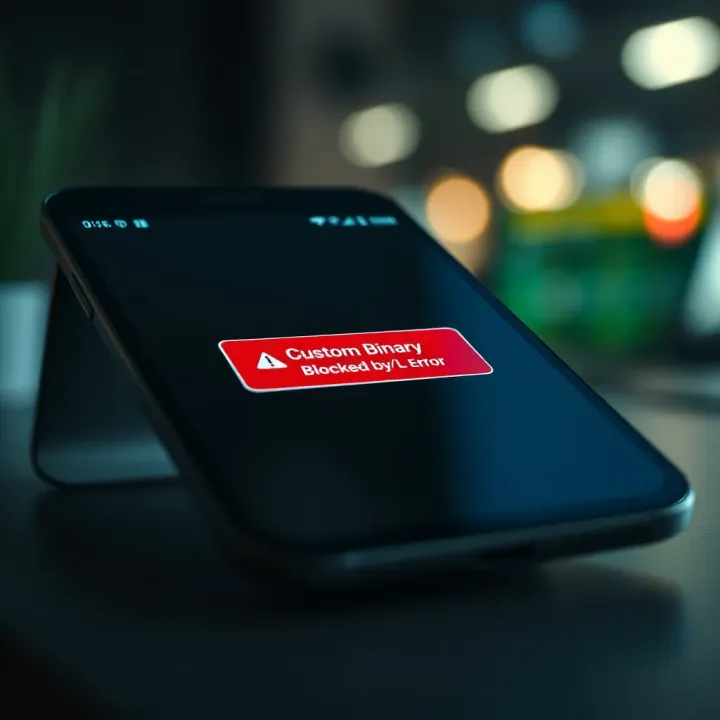
South African users who tinker with their devices — perhaps installing custom ROMs or rooting — often run into this. But even those who haven't done anything unusual might encounter it if an update fails or a flashing process messes up. In practical terms, the error shows your phone’s security layers have kicked in to stop unauthorised software from running.
Understanding this error is crucial before attempting any fixes. The system’s lockdown isn’t arbitrary; it’s there to protect your device from malware, spyware, or any tampering that could cause data leaks or hardware harm.
Here’s what you need to keep in mind:
The error usually appears after trying to flash non-official software or a corrupted update package.
It blocks the phone from booting to avoid security risks.
Ignoring it and forcing the phone to boot can void your warranty or trigger Knox to permanently disable some features.
In the following sections, we'll go through how to identify what caused this error and practical steps to resolve it safely without causing further issues. With a bit of patience, you can get your phone back on track or at least understand the consequences of tinkering with its internals.
Understanding what the "custom binary blocked by R/L" message means is the first step towards fixing this common Android error. This message pops up when your device’s security system detects custom firmware or modifications that don’t match its locked status. Grasping the significance of this error can help traders or investors who rely on Android devices for their financial apps keep their phones in working order without encountering downtime caused by software glitches.
The error first emerged as devices became more security-conscious, especially when manufacturers started locking bootloaders to protect users and networks from malicious or unstable code. Essentially, it’s a safeguard implemented by phone makers like Samsung. For example, if you’ve tried installing an unofficial ROM or rooting your device, this error often appears, blocking the device from booting normally.
"R/L" in the error message refers to "Recovery/Lock" status. This means the device’s recovery system has detected a binary – such as custom firmware or a modified recovery image – that conflicts with the locked bootloader state. A locked device won’t allow unverified software to run, which is why this prompt is shown. For users in South Africa, this could happen after using tools seen on forums or even messing around with updates not approved by the device vendor.
At its core, the error is about security checks during the boot process. An Android phone has a bootloader that verifies all system files before loading the OS. If it spots a mismatch between the expected signature and what’s installed (custom binary instead of official), it blocks the device from booting to prevent a compromised or unstable system. This process protects your data and prevents malware from sneaking in through unofficial software.
This error usually shows up when you attempt to flash custom ROMs, kernels, or recovery images without properly unlocking the bootloader first. Say you bought a Samsung Galaxy device and wanted to install LineageOS without following unlocking procedures – when powering on, your phone will refuse to boot normally, displaying the "custom binary blocked by R/L" message instead.
When your phone hits this error, it’s often a "soft brick." Soft bricks mean the device can still access certain tools like recovery mode or download mode, allowing you to fix it without specialised gear. On the other hand, a "hard brick" would leave the phone utterly dead with no way to turn on or access boot options, often requiring professional repairs or hardware replacement.
You’ll know the error is in play if the device won’t boot past the manufacturer’s logo, instead showing a warning screen with the message. Sometimes the phone restarts repeatedly without success. For traders or business users relying on mobile banking or trading apps, this means your device won’t operate until fixed, which can cause missed trades or delays.
If you see "custom binary blocked by R/L," don’t panic. It’s a common issue related to your phone’s security settings detecting unofficial software. Understanding its meaning helps you to troubleshoot or seek help before things get more complicated.
Knowing the ins and outs of this error equips you to act quickly and avoid disruptions, especially when your Android device is part of your daily work or investment toolkit.

Understanding why the "custom binary blocked by R/L" error appears can save you a headache when tinkering with your Android device. This error generally points to issues linked with software that isn’t officially approved or authorised by the device manufacturer. Grasping the common causes helps traders, investors, and analysts avoid missteps, especially if they rely on their devices for real-time market activities or financial analysis.
Custom binaries refer to unofficial firmware or software components installed on a device instead of the factory default. For example, enthusiasts sometimes flash custom ROMs—alternative versions of the Android operating system—to get additional features, remove manufacturer restrictions, or update an older device. This practice involves replacing the device's original software with something built by the community or third parties.
However, flashing unofficial software carries risks. Custom firmware might not be adequately tested for stability or security on your specific device model. This can lead to erratic behaviour or even soft bricks where the phone won’t boot normally but can be restored. Moreover, manufacturers often embed security checks that detect such modifications, causing the device to block the custom binaries outright, hence the "blocked by R/L" error.
The bootloader is a low-level program that initiates your device’s operating system. Having a locked bootloader acts as a safeguard—it prevents unauthorised firmware from loading. This is especially relevant if your device stores sensitive information or if you rely on its integrity for your work.
Locked bootloaders refuse to execute any custom binary that is not digitally signed or approved by the manufacturer. This means when you try to flash or boot custom ROMs, the device intercepts the attempt and stops the process. This security measure is designed to protect users from corrupted software that might compromise system stability or data security.
Rooting is a method to gain administrative control over an Android device, bypassing default restrictions. Certain rooting methods modify system files, triggering the bootloader's safety mechanisms. When these modifications are detected at boot, the "custom binary blocked by R/L" error shows up.
Android devices include security features that monitor for tampering. They check cryptographic signatures of system components, ensuring they haven’t been altered. These checks keep devices safe from malware or improper software, but they also block legitimate customisations if done incorrectly. For instance, using unofficial rooting tools without unlocking the bootloader first can trip this error, warning that the system refuses to run unverified code.
Being aware of these causes helps you make informed decisions before attempting modifications. For professionals handling sensitive information, maintaining system security and stability is non-negotiable.
Understanding these aspects will also guide users in selecting the right approach to rooting or customisation, or when to seek expert assistance rather than risking device reliability.
Before jumping into fixes for the "custom binary blocked by R/L" error, it's essential to confirm the issue properly. Diagnosing the error accurately helps avoid unnecessary steps that might complicate matters further. For traders and investors who rely on their Android devices to check market movements or execute trades, this verification step can prevent costly downtime or data loss.
Entering recovery mode provides a safe space on your device to troubleshoot without booting fully into Android. Usually, this involves holding a combination of buttons—like volume up, power, and home buttons—while the device is off. Once in recovery mode, you can perform actions such as wiping caches or factory resetting, which sometimes clears errors linked to corrupted files. For instance, if you accidentally tried flashing a wrong custom binary, recovery mode allows a limited set of operations to restore stability.
Navigating download or Odin mode is another critical step, especially for Samsung devices. Download mode lets you connect via PC to install official firmware using tools like Odin. To enter, you typically hold down the volume down, power, and home buttons (sometimes variations depending on the model). This mode is crucial because it lets you overwrite problematic custom binaries with official software, effectively resolving the "custom binary blocked by R/L" error. Missing this step or confusing it with recovery mode can delay repairs.
Reading screen error codes can provide clues to the root of the problem. When your device shows the "custom binary blocked by R/L" message, it often includes additional codes or text that detail the issue. Being able to interpret these correctly helps determine if the error stems from bootloader locks, failed rooting attempts, or improper firmware flash. For example, a code might indicate the device’s bootloader is locked, which blocks custom binaries. Taking note of these codes before seeking solutions saves time.
Checking bootloader and device status is another important aspect of diagnosis. Your device's bootloader controls which software can run; if it’s locked, it prevents non-official binaries from loading, causing this error. Verifying the bootloader state can be done via fastboot commands or from within the recovery menu on some devices. Knowing whether the bootloader is locked or unlocked guides the next steps—unlocking it if needed or restoring stock firmware correctly. For traders, this ensures their trusted apps on the device function without interruption due to device-level security blocks.
Getting these diagnostic steps right can save you from unnecessary expense or risking your device further. It's always smart to understand what's happening before attempting fixes, particularly if your Android device is a key tool for financial decisions or market monitoring.
Fixing the "custom binary blocked by R/L" error is essential to get your Android device back to working order. This error usually stops your device from booting because it rejects unauthorised changes at the system level. Addressing it carefully not only restores normal use but also helps avoid voiding your warranty or causing further damage.
Obtaining official firmware specific to your device is the first step to recovery. Each phone model requires its exact firmware build to ensure compatibility. For example, a Samsung Galaxy S10 from Vodacom will need the Vodacom-specific version of the firmware. Using incorrect firmware can worsen the problem, possibly leading to a hard brick.
Using Odin or other flashing tools is the common method to install the firmware on Samsung devices. Odin, developed by Samsung, flashes official software using a PC connection. It’s quite straightforward but requires caution: make sure to disable any antivirus during flashing, avoid interrupting the process, and use the official Odin version. For other brands, tools like SP Flash Tool or Mi Flash can be alternatives but each demands device-specific knowledge.
Risks and benefits of unlocking the bootloader should be weighed carefully. Unlocking allows you to install custom ROMs or root your device but also disables some security features, risks software glitches, and typically voids your manufacturer warranty. In South Africa, where service centres rely heavily on valid warranty for repairs, this can be a significant disadvantage.
Step-by-step unlocking process usually starts with enabling developer options on your device, turning on OEM unlocking, and then using a command line tool (like Fastboot) on your PC to officially unlock the bootloader. The exact steps vary by manufacturer but often involve downloading the device’s SDK tools and running specific commands. Always back up your data before proceeding, as unlocking erases all content.
Removing custom recovery is crucial when reverting to stock. Custom recoveries such as TWRP must be replaced with the stock recovery to prevent error loops. This usually involves flashing the stock recovery image using Odin or similar tools.
Unrooting with proper tools ensures the device returns to its original state. Apps like SuperSU or Magisk allow you to fully unroot your phone, removing all traces of root access. This is important especially when applying official updates or returning the device for warranty repairs.
Situations requiring technician intervention include cases where flashing fails repeatedly or the device enters a permanent bootloop. If you've tried restoring firmware and unlocking without success, a technician’s expertise can prevent turning your smartphone into a paperweight.
Finding reliable service centres in South Africa means looking for authorised dealers or repair centres with good reputations for firmware recovery. Big cities like Johannesburg, Cape Town, and Durban have several trusted service providers. Always check reviews and confirm that your device’s warranty terms aren’t voided before handing it over.
Restoring a South African Android device after encountering the "custom binary blocked by R/L" error takes care and the right tools. Where unsure, getting professional help can save you time, money and headaches down the line.
This approach not only resolves the error but aligns with local consumer realities, ensuring your gadgets run smoothly without compromising important warranties or security.
Avoiding the "custom binary blocked by R/L" error down the line saves stress, time, and potentially costly repairs. While it’s tempting to tweak your Android device by installing custom software or rooting it, understanding the risks and taking smart precautions can keep your phone running smoothly without interruptions.
Installing custom binaries or rooting your phone usually voids the manufacturer's warranty. For example, if your Samsung or Huawei device encounters hardware or software issues after flashing unofficial firmware, the manufacturer may refuse repairs or replacements under warranty. This means you could end up paying out of your own pocket for fixes that would otherwise be covered.
South African consumers should remember that warranty terms often include clauses about unauthorised modifications. So, if your device gets stuck showing the "custom binary blocked by R/L" error after tinkering, you're likely on your own for fixing it. It’s worth weighing the benefits of customisation against the loss of protection your warranty provides.
Tampering with device firmware can open security loopholes, making your phone vulnerable to malware or unauthorised access. For instance, some root methods bypass built-in security checks, which attackers could exploit to steal personal info or install unwanted apps.
Furthermore, South African laws around digital fraud and data privacy mean your altered device might not meet compliance standards set by companies or institutions. This can matter if you use your phone for work or financial transactions—consider the risk before flashing software from sketchy sources.
Before any modification, always create a full backup of your important files, contacts, and app data. South Africans often rely on limited mobile data, so using Wi-Fi to back up through Google Drive or a local PC makes sense. This way, if something goes wrong and your phone won’t boot, you won’t lose photos from that family braai or critical work documents.
Backing up regularly also means you can experiment with custom ROMs or root access with less worry. If you encounter the "custom binary blocked by R/L" error or any boot problems, a quick restore from backup saves you from starting over completely.
Downloading firmware, kernels, or root tools from unknown or unofficial sites increases your chance of encountering errors or even malware. Instead, stick to well-known platforms like XDA Developers or the official brand forums, where software versions and modifications get tested and verified.
Be particularly wary of downloading from random links shared on social media. These files might contain hidden malware or corrupt binaries that trigger security blocks, including the "custom binary blocked by R/L" message. Using trusted sources minimises risk to your device and personal data, ensuring safer customisation.
Preventing this error isn’t just about avoiding hassle—it protects your phone’s longevity, your privacy, and your wallet. A careful approach to device modification pays off in the long run.
🔢 Discover how binary numbers power the tech around us—from mobile devices to local digital services. Learn to convert numbers and see the digital world clearly!

🔢 Learn how to convert binary numbers to decimal step-by-step with clear examples and tips to avoid errors. Perfect for students or anyone handling digital data.

🔢 Learn how binary data becomes readable ASCII text! This guide covers key methods, real-world uses, and tips to fix common hiccups when converting digital data.

Learn how to convert hexadecimal to binary with clear steps, practical tips, and common pitfalls explained 🔢 Perfect for tech enthusiasts in South Africa!
Based on 11 reviews